
Key Takeaways
- Shadcn select is a button-triggered dropdown that ships with both Radix UI and Base UI docs, so you choose the primitive.
- The code copies into your project, which means you own styling, state, and validation with no upstream lock-in.
- These patterns map to real screens: required fields, status flows, time zones, multi-select, grouped lists, and validated form submits.
- Install through the Shadcn CLI with pnpm, npm, yarn, or bun, then paste the code straight into your repo.
- Use select for one pick from a known list. Reach for a combobox or a radio group when the list is searchable or very short.
A broken select rarely looks broken. It looks fine until a user tabs into it and focus disappears, or the pop-up opens off-screen on a laptop, or a form submits with an empty value because validation never fired. Small bug, big trust problem.
That is why select deserves more thought than most developers give it. You build it once, then it sits inside signup, settings, filters, and dashboards for years. If the base is weak, every screen that uses it inherits the weakness.
This guide walks you through the best shadcn select components built for real React and Next.js apps.
What is Shadcn Select?
Shadcn Select is a dropdown input that shows a list of options for the user to pick from, triggered by a button. The official shadcn/ui docs describe it that way, and they ship docs for both Radix UI and Base UI primitives.
The difference from older libraries is ownership. The component code lands inside your repo, so you read it, style it, and debug it without fighting a black box.
Accessibility behaviors, such as keyboard navigation and focus handling, come from the underlying Radix UI or Base UI primitives. You start on solid ground, then shape the rest with Tailwind CSS.
Why Select is one of the most used UI patterns
A select does one job well: it lets a user pick one value from many without flooding the screen. That single job shows up almost everywhere you build.
Signup forms need a role or country. Dashboards need status and date filters. Settings panels need a timezone and a language. Each of these is a select waiting to happen.
It also keeps the layout tight. Ten radio buttons eat vertical space, while one trigger and a clean pop-up stay compact. And because the chosen value reads as a simple string or array, it slots into form libraries and validation without extra glue code.
That mix of small footprint and strong form fit is why a React select component shows up in nearly every product I touch.
How these Select components were evaluated
Each select component was evaluated on more than just design. The following criteria were used to ensure they meet the demands of real-world applications:
| Criteria | Description |
| Accessibility | Evaluated keyboard navigation, focus management, and screen reader support using accessible headless primitives like Radix UI or Base UI. |
| Code Clarity | Reviewed code structure, readability, and maintainability to assess ease of customization and extension. |
| Install Flow | Measured how quickly and easily the component can be integrated into a project, including CLI-based setup. |
| State Handling | Assessed management of selected values, open/closed states, and placeholders for predictable behavior. |
| Form Integration | Tested compatibility with HTML forms and libraries like React Hook Form and Zod, including validation and error handling. |
| Use Case Versatility | Evaluated flexibility across common scenarios such as dashboards, settings panels, and onboarding flows. |
Install Once, Copy-Paste Everywhere
Every pattern here installs through the Shadcn CLI. You can use pnpm, npm, yarn, or bun, so it fits whatever your team already runs. The flow is a direct copy-paste approach, which means the source code lands in your project and you own every line.
Here is one sample install command for pnpm:
pnpm dlx shadcn@latest add @shadcn-space/select-01Swap the package manager prefix for your setup, and the rest stays the same. The patterns support both Radix UI and Base UI, and they were built with React, Next.js, Tailwind CSS, and Framer Motion.
Best Shadcn Select components and examples
Explore a curated collection of Shadcn select components, patterns, and real-world examples.
Required Select
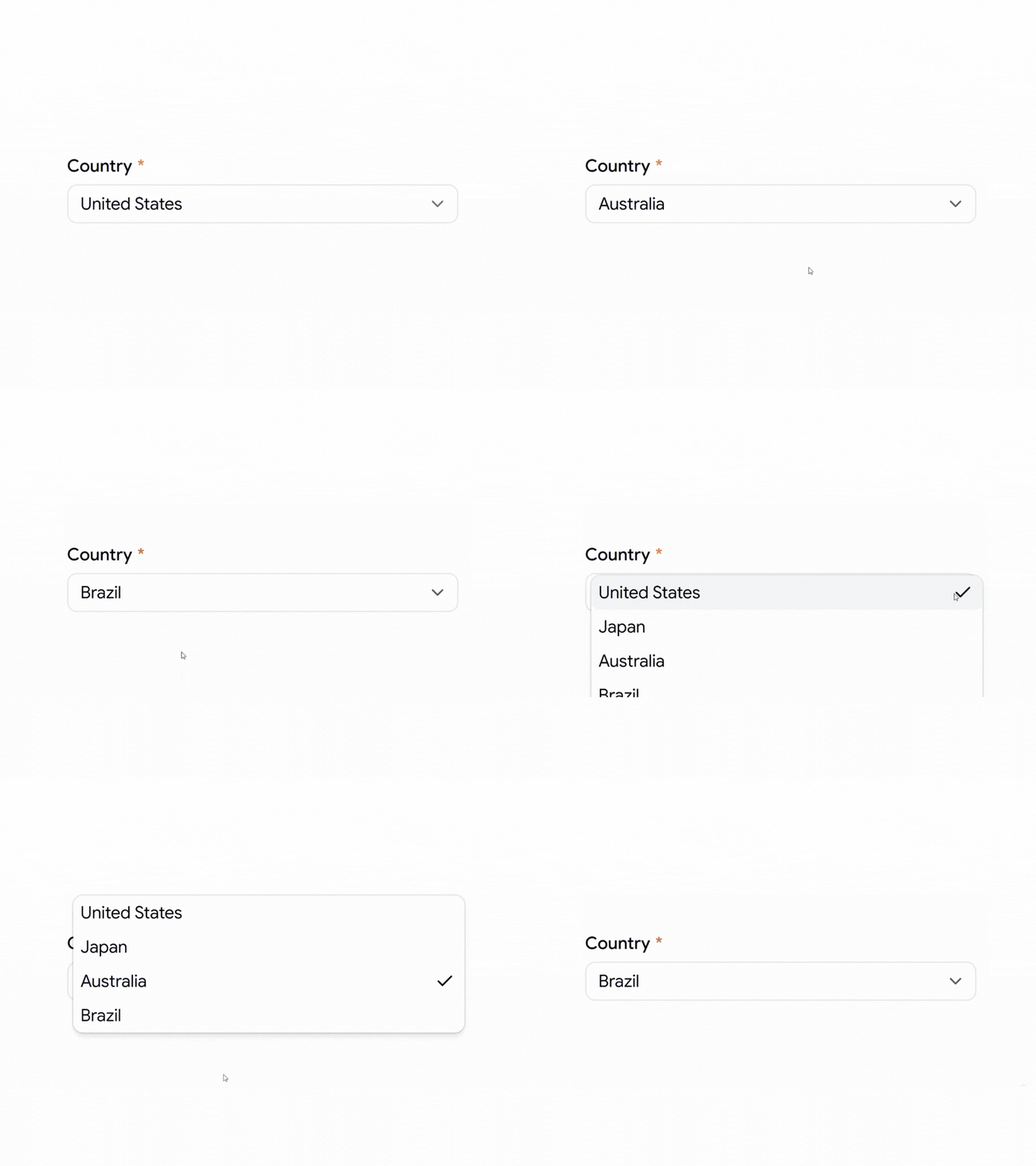
This is the field a user cannot skip, so it displays a required indicator and ties into validation to prevent an empty submission. You own the placeholder and the error state, since the logic sits in your code rather than an external wrapper. Keyboard users move through one trigger into a clean list, with focus returning to the trigger on close.
Use cases:
- Signup forms that need a mandatory country
- Checkout flows requiring a shipping region
- Account setup with a required role
- Survey steps that block empty answers
- Booking forms need a chosen service type
Best for: Forms where one field must not be left blank.
Select with Icon
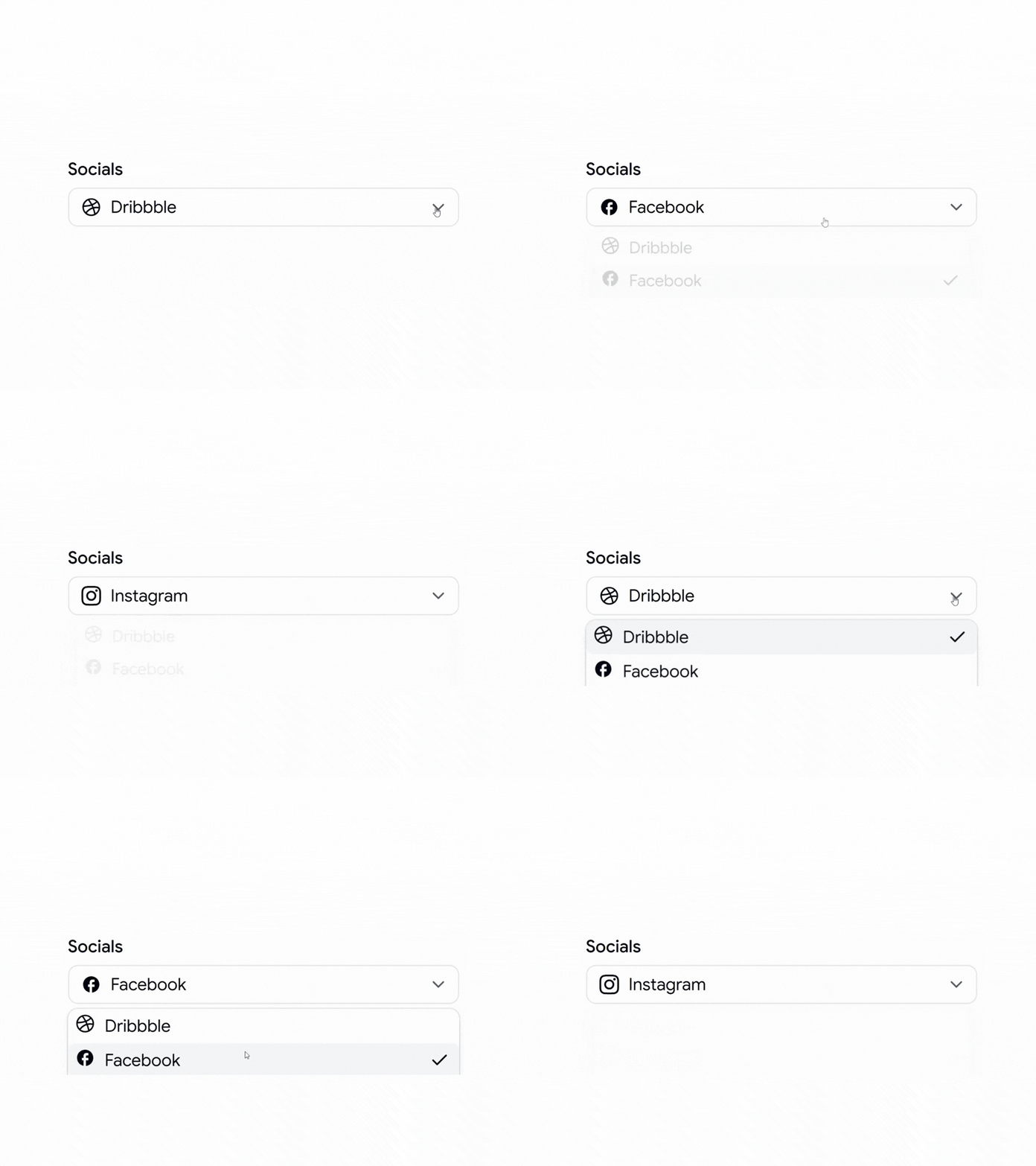
This pattern places a leading icon beside each option, which cuts the time a user spends telling similar labels apart. Icons help most when the text alone is ambiguous, like social platforms or file types. You manage the icon set, so the trigger shows the selected icon and label together, and the state stays obvious at a glance.
Use cases:
- Social account pickers with brand marks
- File type selectors in upload tools
- Payment method choices with card logos
- Category filters that need a visual tag
- Integration pickers in developer dashboards
Best for: Choices where a visual cue reads faster than text.
Select with Status
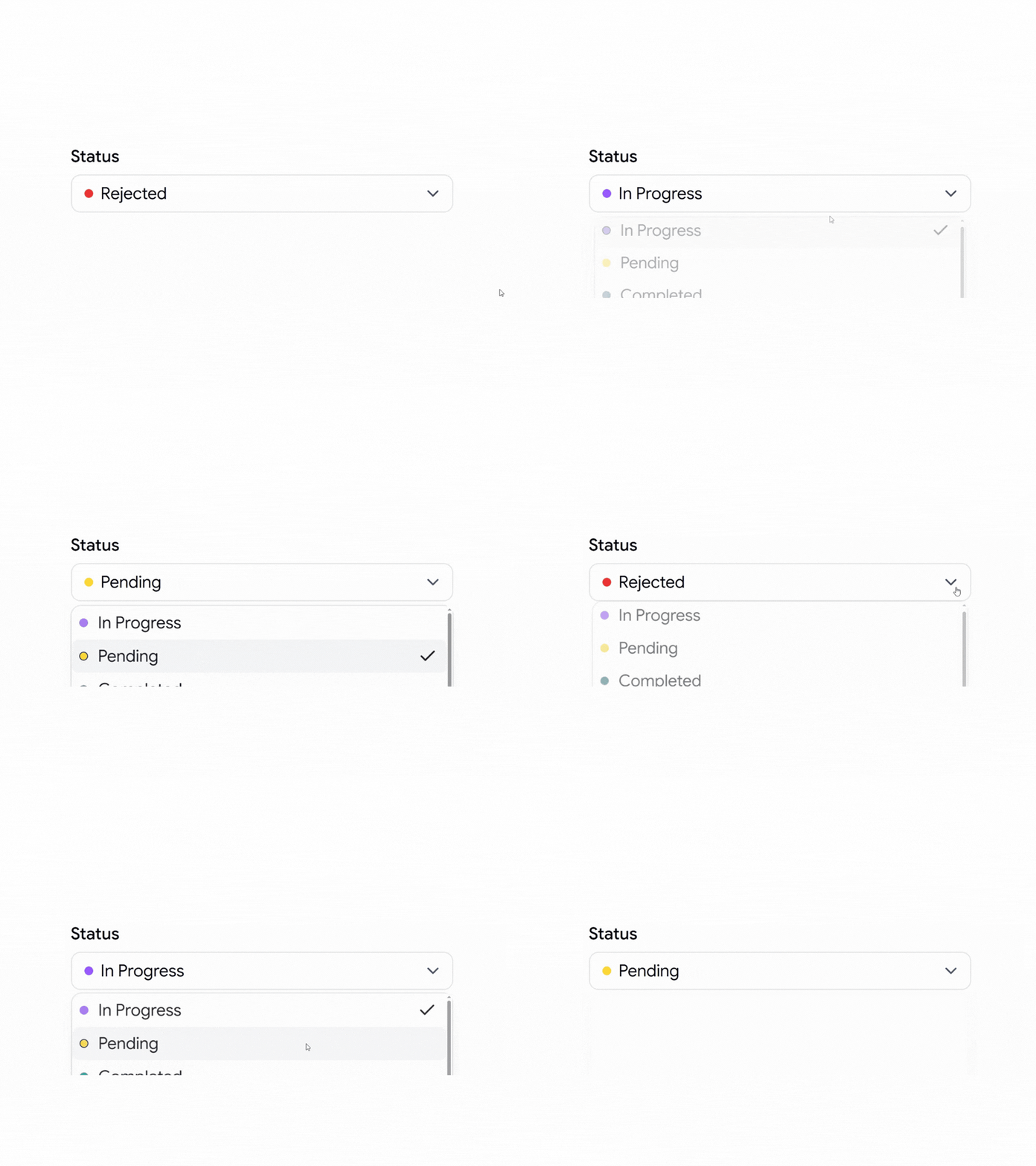
This pattern shows a workflow state, like “In Progress,” with a dot or color so the current value reads at a glance. It fits task boards and tickets where status drives the rest of the flow. Because the set of states is fixed, validation stays simple, and you can wire the selected value straight into your data layer.
Use cases:
- Task boards with 3 to 5 workflow states
- Ticket systems track open and closed
- Order pipelines from pending to shipped
- Content tools with draft and published
- CRM deals are moving across deal stages
Best for: Tools that track and change item state.
Form Select with Submit Button
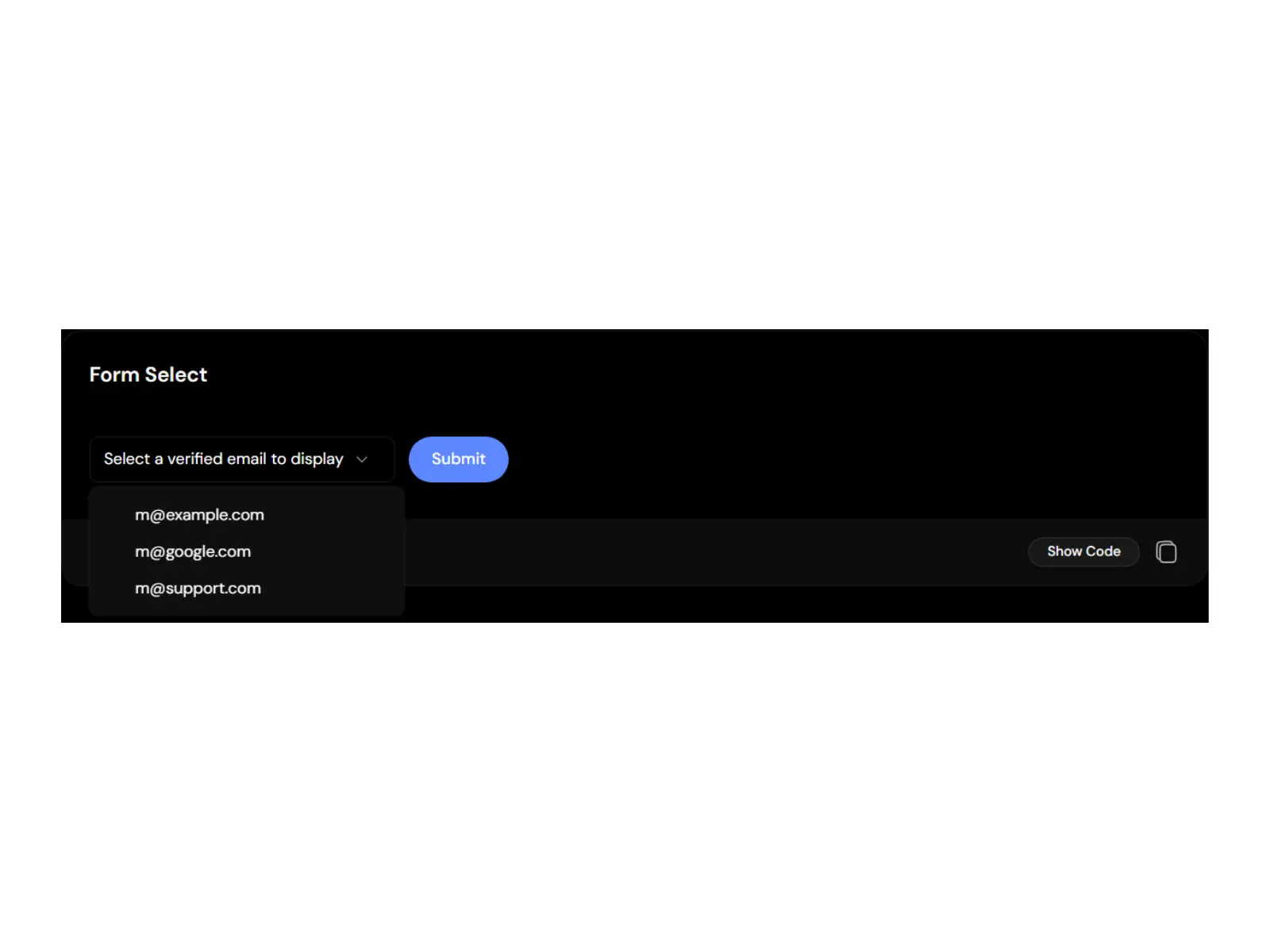
This pattern pairs a select with a submit action and validates the choice end-to-end. The official reference builds it with a resolver and schema, so an invalid pick shows a message and stops the submission. You get the value back in a typed shape through onValueChange, which keeps the handler clean and predictable.
Use cases:
- Email display pickers with 3 verified options
- Settings forms that save on submit
- Single-question forms with strict rules
- Profile updates needing one confirmed value
- Inline filters that apply on submit
Best for: Inline forms that validate one choice and save it.
Select with Timezone
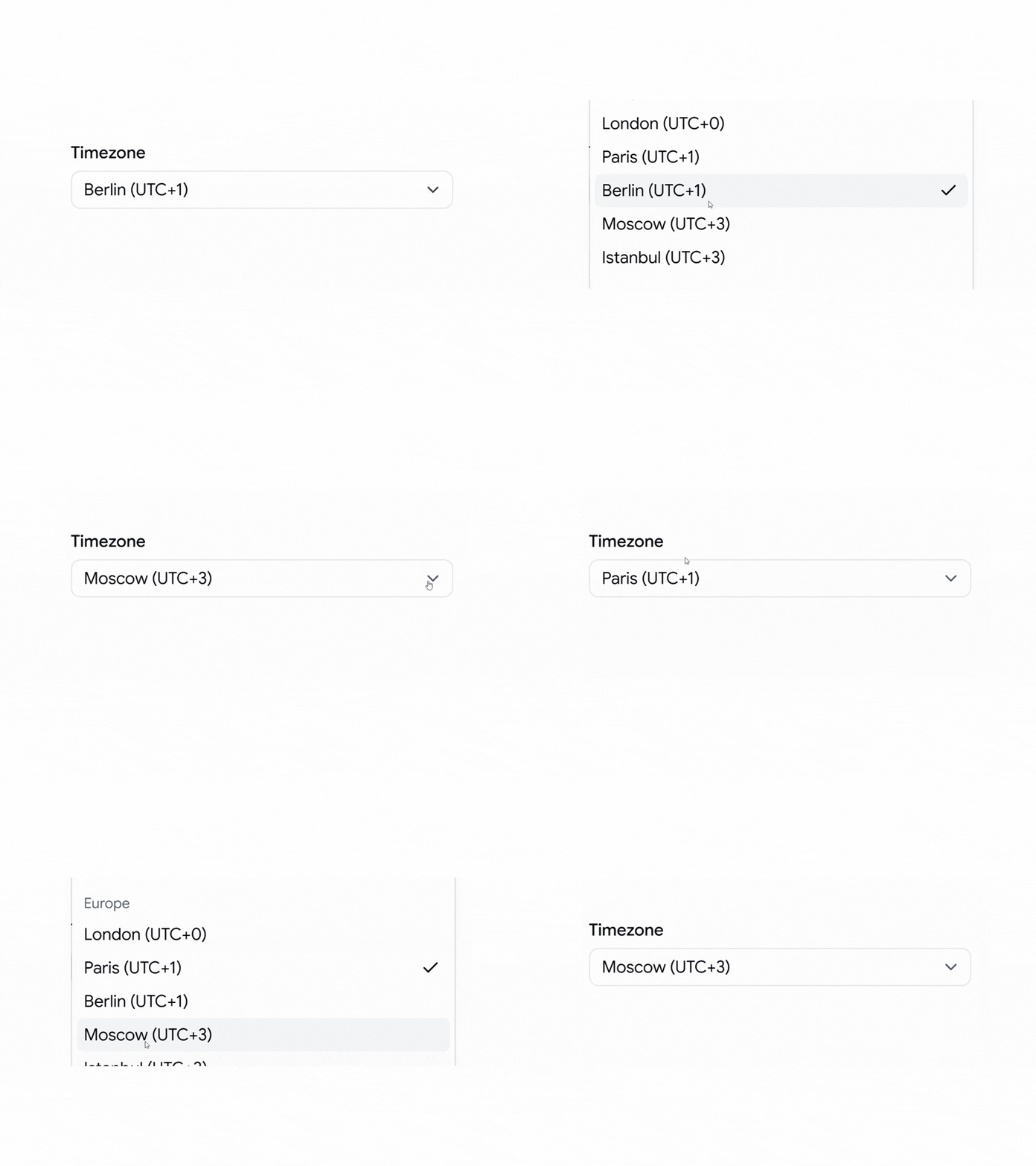
This pattern groups a long option list into labeled regions like North America and Europe, so users can find their zone fast. The reference example scrolls through 30+ zones across 5 region groups inside one pop-up. Each zone maps to a single stored value, so the state stays clean even when the list is long.
Use cases:
- Scheduling tools that need a user’s timezone
- Calendar settings for global teams
- Meeting booking with regional clarity
- Account preferences for date display
- Server config screens with zone selection
Best for: Long option lists that need scrolling and groups.
Select with Overlapping Label
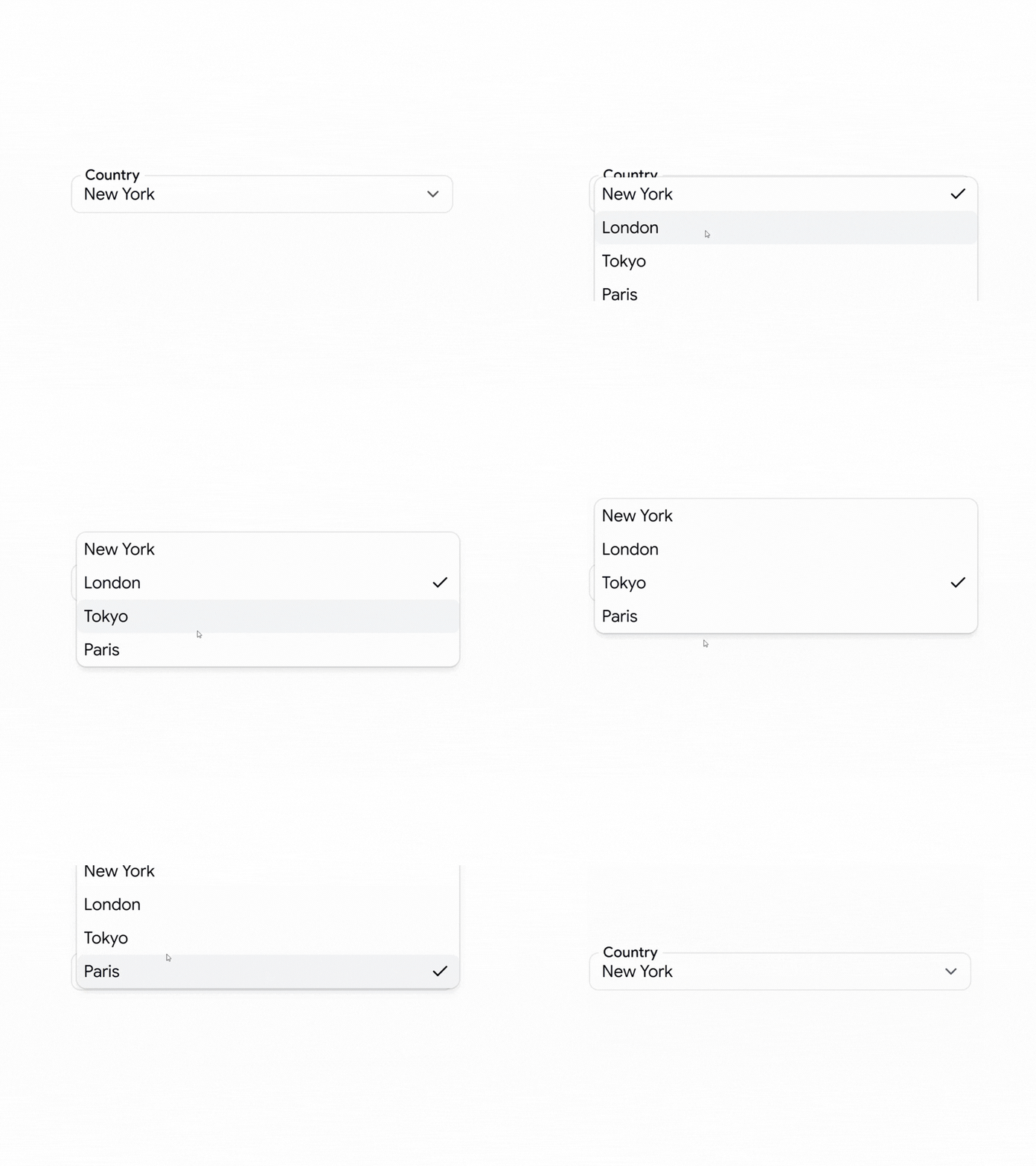
This pattern floats the label over the trigger border, which saves vertical space in a dense form. The field stays labeled at all times, so users who jump around a long form never lose context. You control the float position and spacing with Tailwind classes, and the label still ties to the input for assistive tech.
Use cases:
- Dense onboarding forms with many fields
- Compact settings panels in admin tools
- Multi-step wizards that conserve height
- Forms built for small mobile viewports
- Profile editors packed with inputs
Best for: Tight forms where vertical space is scarce.
Select with Multiple Options
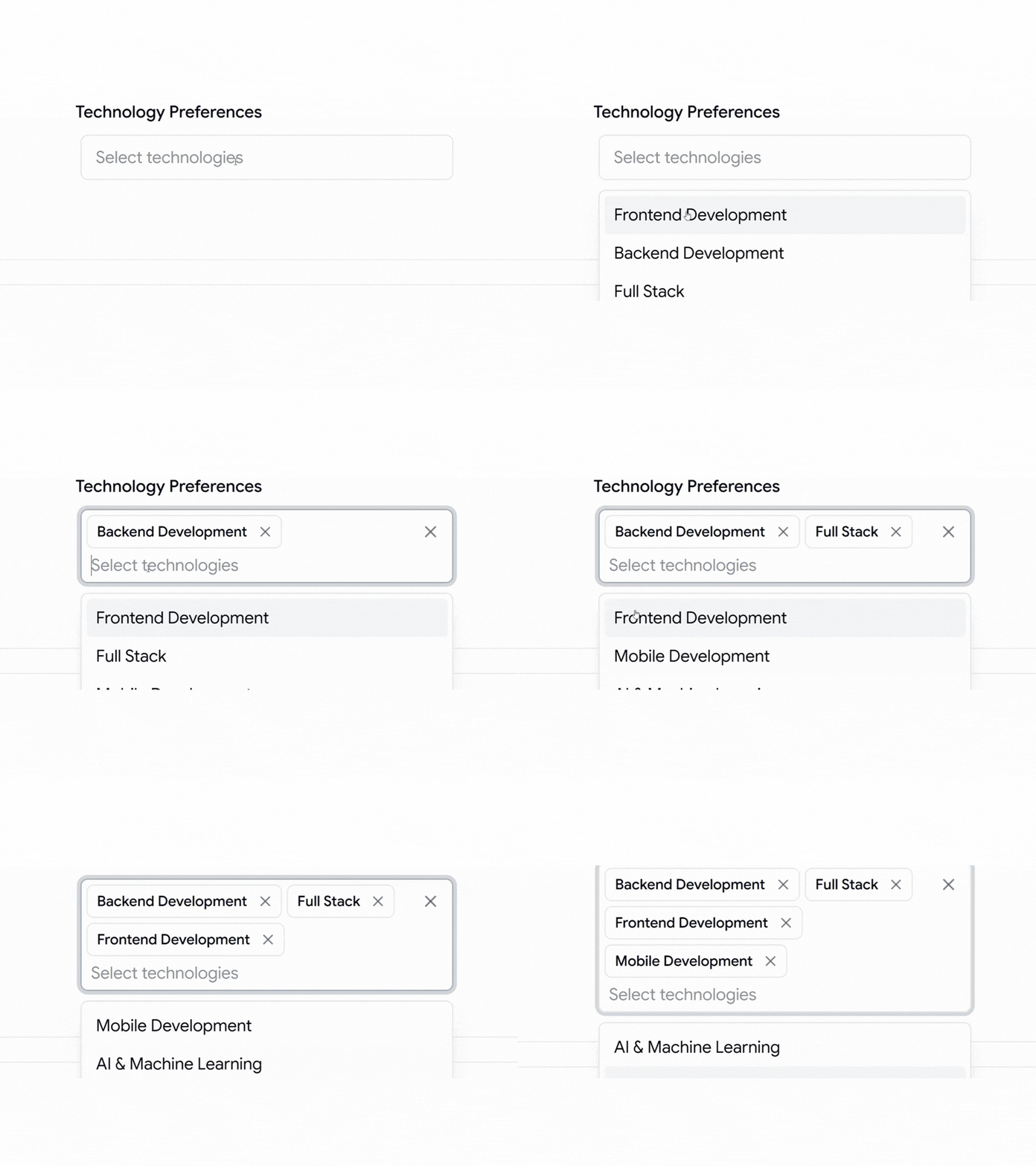
This pattern lets a user pick several values from one control instead of a wall of checkboxes. You manage the array of selected values, so validation can check a minimum count or a required pick. The trigger reflects how many items are chosen, which keeps the current state readable without opening the pop-up.
Use cases:
- Skill or technology preference pickers
- Tag selectors across multiple categories
- Filter panels needing several active values
- Permission screens pick many roles
- Interest selection during onboarding
Best for: Fields where users need more than one value.
Select with Avatars
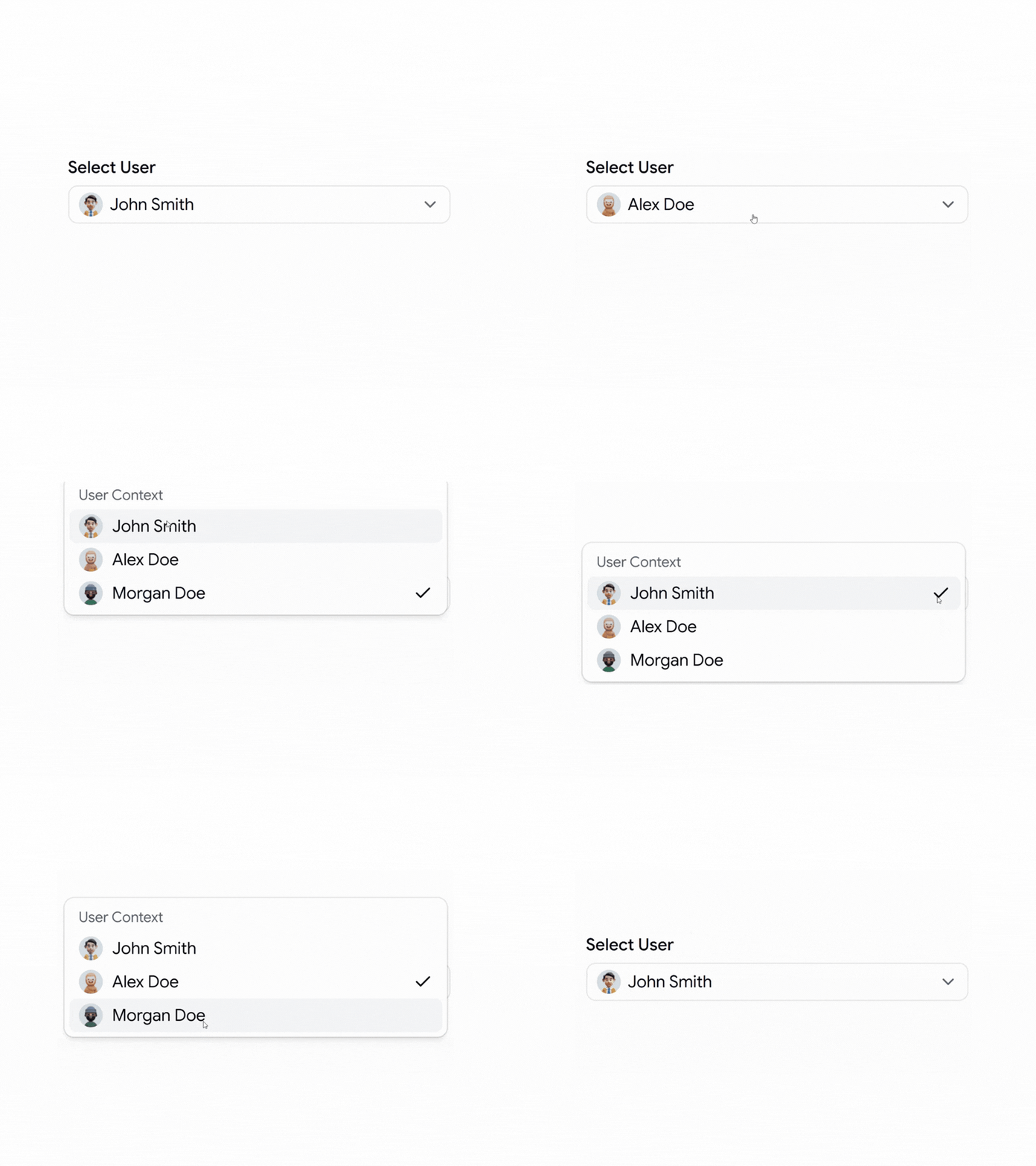
This pattern shows a user image next to each name, which speeds up picking people from a list. Assignment fields and mention pickers read faster when a face backs the label. You supply the avatar source per option, so the list stays in sync with your user data and the trigger shows the chosen person clearly.
Use cases:
- Task assignment to team members
- Reviewer pickers on pull requests
- Owner fields in CRM records
- Mention selection inside comments
- Account switchers in multi-user apps
Best for: Picking a person from a known group.
Select with Leading Text
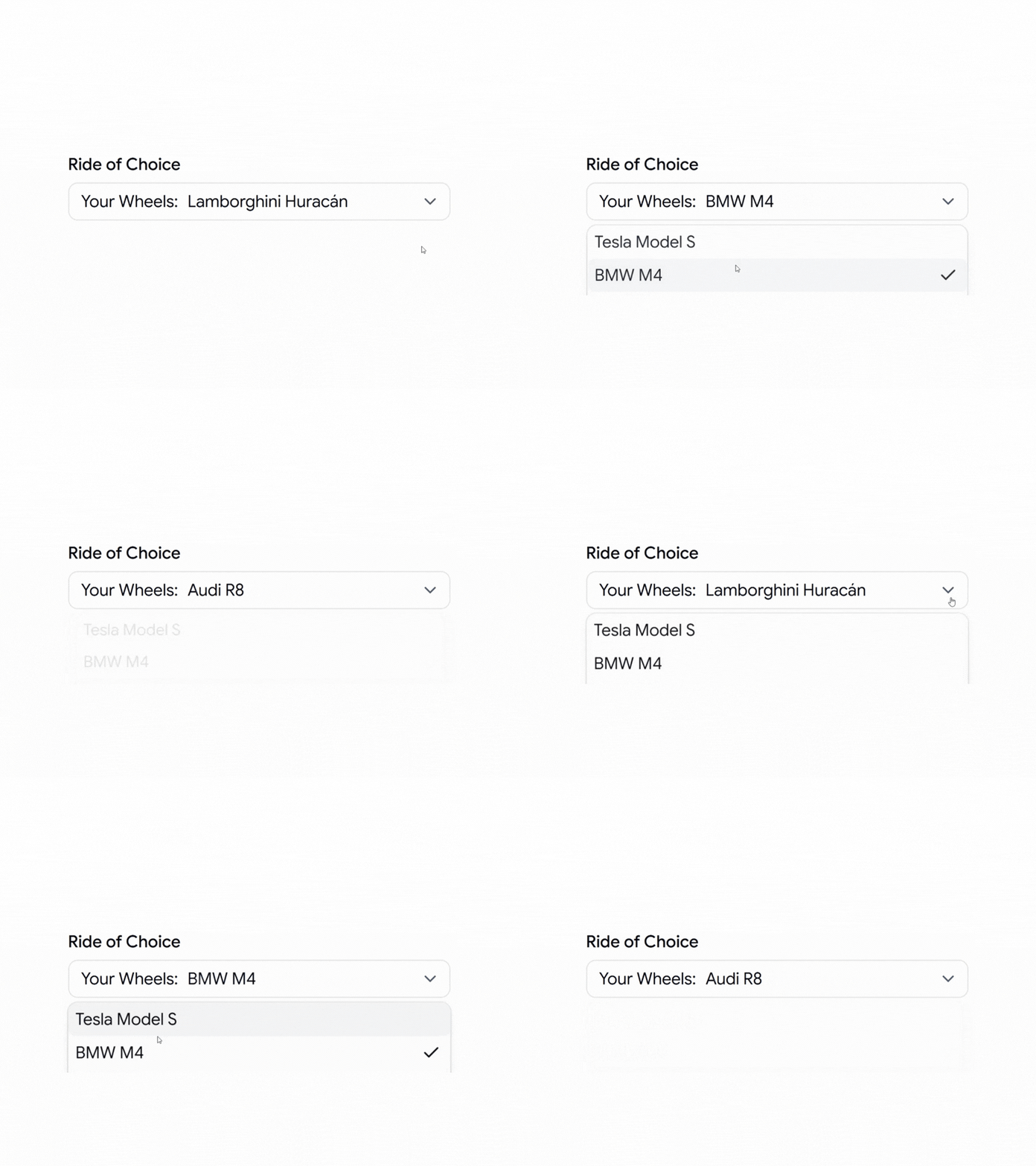
This pattern adds fixed prefix text inside the trigger, like “Your Wheels:”, so the value reads as a full phrase. The prefix frames the choice without spending a separate label line above the field. Only the trailing value changes on selection, so the state stays simple, and the context stays clear.
Use cases:
- Plan pickers with a fixed prefix
- Vehicle or product choosers
- Preference fields that need framing
- Pricing tier selectors
- Config fields with a label phrase
Best for: Choices that need a fixed prefix for context.
Select with Separator
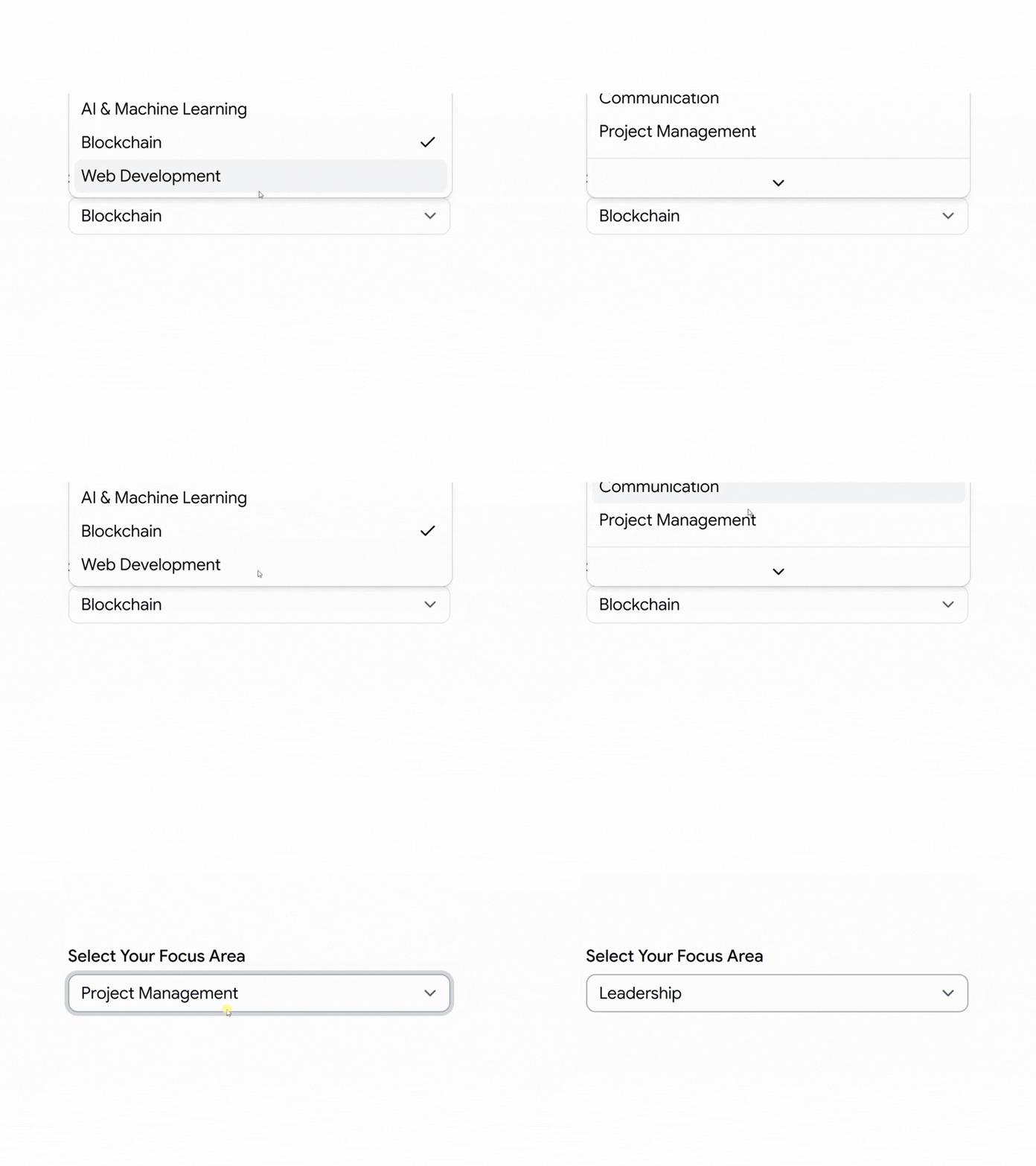
This pattern uses separators to split options into clear sections inside one list. It helps when a single select holds distinct groups, like focus areas or departments. You add the separators and labels yourself, so the grouping matches your data, and users make fewer wrong picks as the list grows.
Use cases:
- Department pickers split by team
- Focus area selectors with sections
- Menus mixing actions and items
- Category lists with subgroups
- Settings grouped by type
Best for: A single list that needs visible section breaks.
Align Item with Trigger
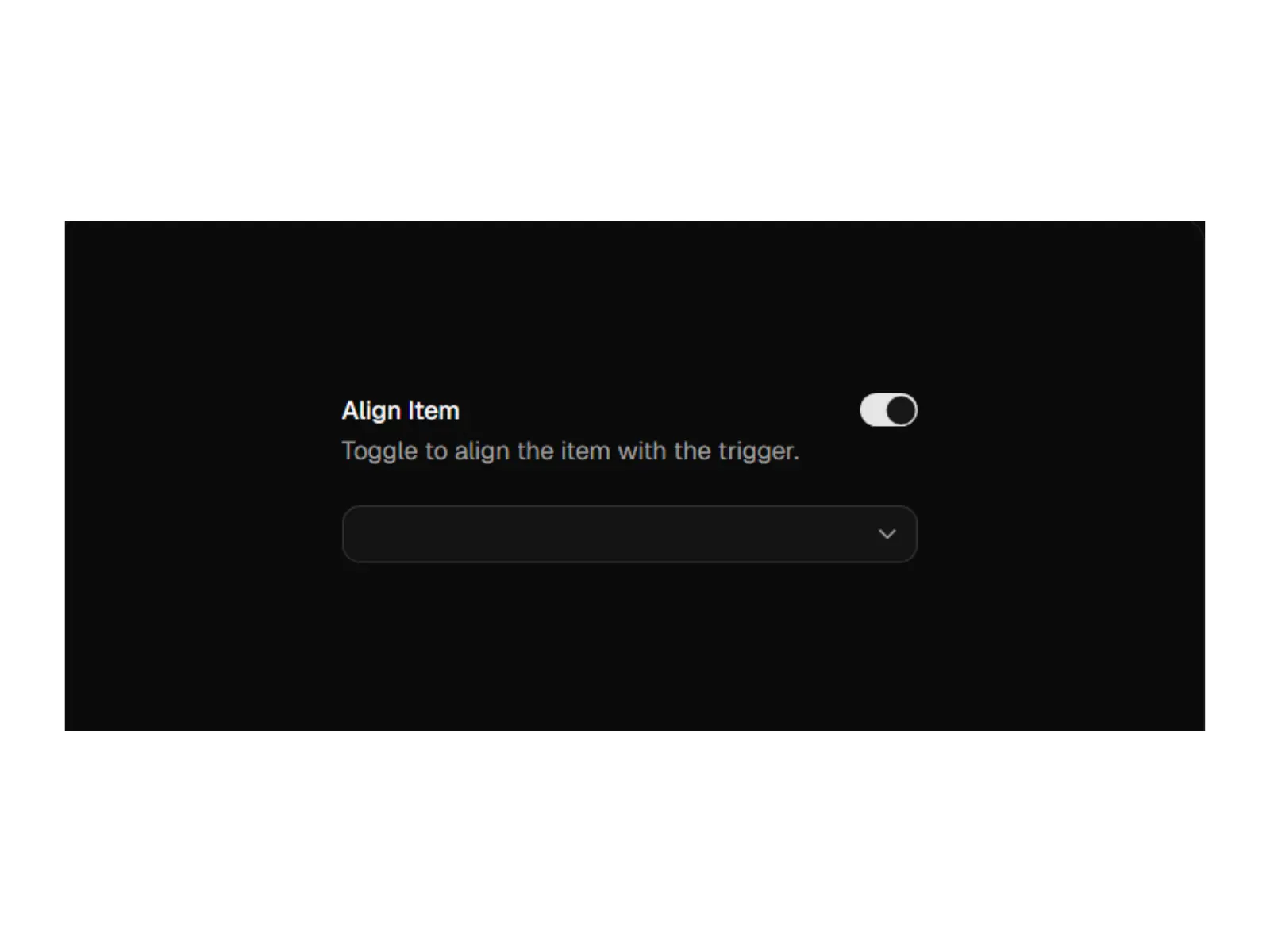
This pattern uses the position prop on the content to control the pop-up alignment. With position=”item-aligned”, the selected item sits over the trigger, and with position=”popper”, the pop-up aligns to the trigger edge. The official docs show both, which matters when a select sits in a dense table or a scroll area.
Use cases:
- Inline edits where the value stays in place
- Dense tables with row-level selects
- Compact toolbars holding dropdowns
- Forms where pop-up placement matters
- Edge-aligned filters on narrow screens
Best for: Controlling exactly where the pop-up opens.
Group Select
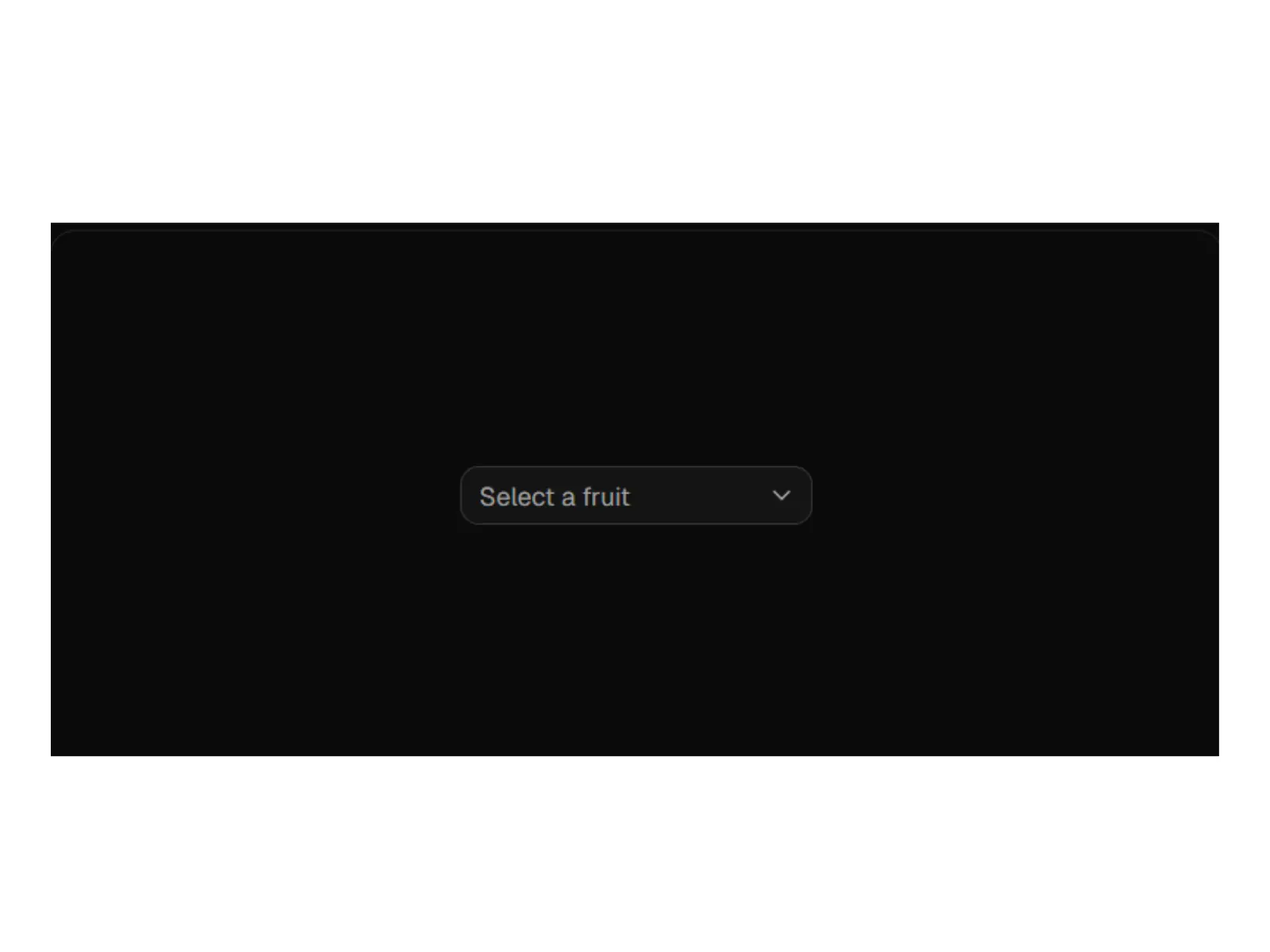
This pattern uses group, label, and separator parts to organize items, as the official docs describe. It turns one long list into labeled clusters that follow your domain. Grouping cuts scan time and reduces wrong picks once the list grows past a handful of options.
Use cases:
- Product lists split by type
- Region pickers grouped by continent
- Settings grouped by category
- Command-style lists with sections
- Catalog filters with grouped values
Best for: Long lists that read better in named groups.
When to Use Select vs Combobox vs Radio Group
Picking the right control matters as much as styling it. Here is how we decide.
Use a select when a user picks one value from a known list of roughly 5 to 30 items, like a status, role, or timezone. The list is fixed, the user does not need to type, and you want a compact trigger.
Use a combobox when the list is long, or the user benefits from typing to filter. Country lists, product catalogs, and user search all read faster with type-ahead. A plain select forces scrolling, and that gets slow past 30 or so options.
Use a radio group when there are only 2 to 4 options, and they all matter at a glance. Radios show every choice at once, so the user skips the extra click of opening a pop-up.
Quick rule: short and visible goes to radio, long and searchable goes to combobox, and everything in between goes to select.
Real-World Use Cases
Forms
Pair the select component with a schema validator to prevent invalid submissions and ensure you receive correctly typed values.
Settings Pages
Use it to manage options like timezone, language, and other account preferences without cluttering the user interface.
Admin Dashboards
Use it to handle status updates and assignment changes without adding unnecessary complexity.
User Onboarding
Employ multiple-option and avatar patterns to help new users set their preferences quickly and intuitively.
Data Filtering
Use it to organize large sets of filter options and make complex searches easier to navigate.
FAQ’s
1. Can I customize the Shadcn select?
Yes. Since the code is copied directly into your project, you have full control over styling and functionality. You can modify the CSS classes to match your design system, change animations, or add custom logic to the component’s behavior without needing to override styles from an external library.
2. How do I use shadcn select with forms and validation?
Wrap the select in your form field and connect it to a schema validator. The official form example uses a resolver and a schema, so an invalid pick shows a message and blocks the submit. The onValueChange handler updates your form state, and data-invalid plus aria-invalid mark the error so screen readers catch it too.
3. When should I use select instead of another input?
Use a select when users pick one value from a known, medium-length list, like a status, role, or timezone. For two or three options, radio buttons read faster. For long, searchable lists, a combobox or command menu beats a select. If users need many values at once, reach for the multiple-options pattern.
Final Thoughts
Select is a small control that touches almost every form, filter, and settings screen you ship. The patterns here cover the cases that actually come up: required fields, status flows, grouped lists, time zones, avatars, multi-select, and validated submits.
Each one runs on Radix UI or Base UI, installs through a single CLI command, and lands in your repo as code you control.
Start with the required select and the form select if you are building forms today. Add the status and grouped patterns as your screens grow. Pick the one that matches your layout, paste it in, and wire it to your state and validation.
Additionally, if you’re looking for ecommerce templates, explore our guide on the best ShadCN Ecommerce templates, which provides step-by-step instructions to get started.